When a WordPress website breaks, most people panic.
In my experience, panic makes things worse.
Over the years, while working with client websites, I’ve learned that almost every WordPress issue can be debugged calmly if you follow a clear process.
This is the exact step-by-step method I use when a website is broken, slow, or behaving strangely.
Step 1: I don’t touch anything immediately
The first thing I do is not change anything.
Before fixing, I try to understand:
- What exactly is broken?
- When did it start?
- What was the last change made?
Many times, the issue started after:
- a plugin update
- a theme update
- a new plugin installation
- server or PHP version change
Step 2: I check if the site is completely down or partially broken
I check:
- Is the frontend broken?
- Is the admin dashboard accessible?
- Is it a white screen or just one page issue?
This helps me decide:
- Is this a fatal error
- or a specific feature issue
This step saves a lot of time later.
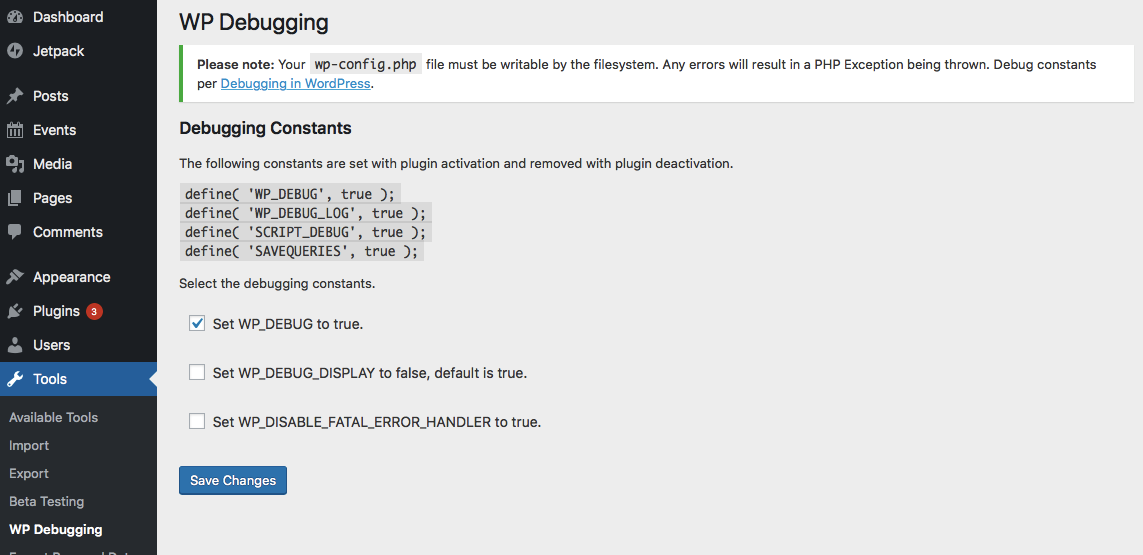
Step 3: I enable debugging (if needed)
If the issue is not clear, I enable WordPress debugging.
I look for:
- PHP errors
- missing files
- deprecated functions
I don’t keep debug mode enabled forever —
only long enough to understand the issue.
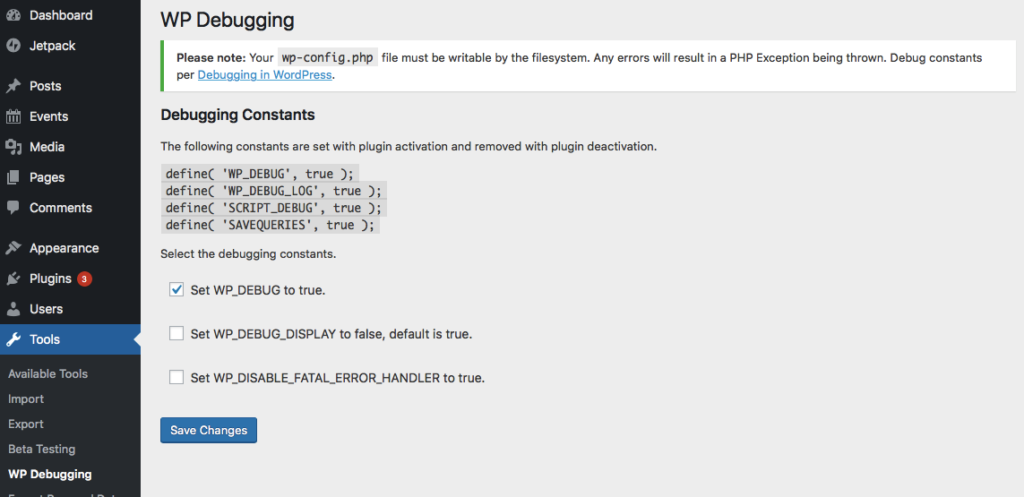
Step 4: I disable plugins one by one (very important)
Most WordPress issues come from plugins.
So I:
- Disable all plugins
- Check if the issue is gone
- Enable plugins one by one
This helps me clearly identify:
- which plugin is causing the problem
I never guess.
I always confirm.
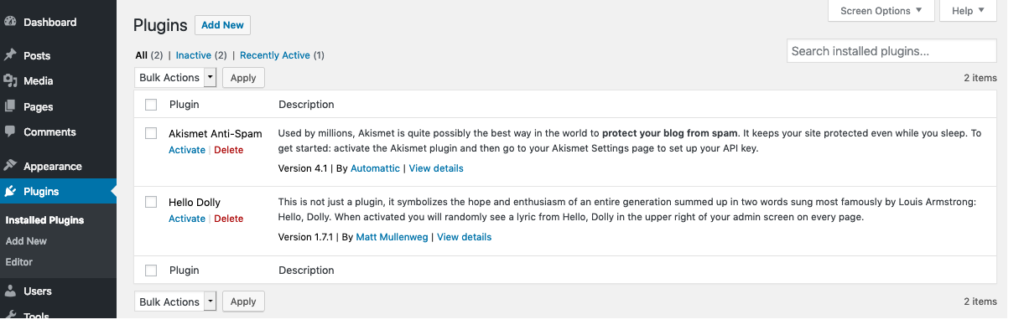
Step 5: I switch to a default theme (temporarily)
If disabling plugins doesn’t fix the issue,
I switch to a default WordPress theme like:
- Twenty Twenty-Four
- Twenty Twenty-Three
If the issue disappears after this,
then I know the problem is theme-related.
After testing, I switch back to the original theme.
Step 6: I check recent changes (CSS, settings, updates)
I carefully check:
- Custom CSS
- Recent plugin updates
- Recent theme updates
- Any new code added
This is important because:
- even small CSS changes can break layouts
- even small settings changes can affect behavior
This is also why I later built an admin change-tracking plugin for myself.
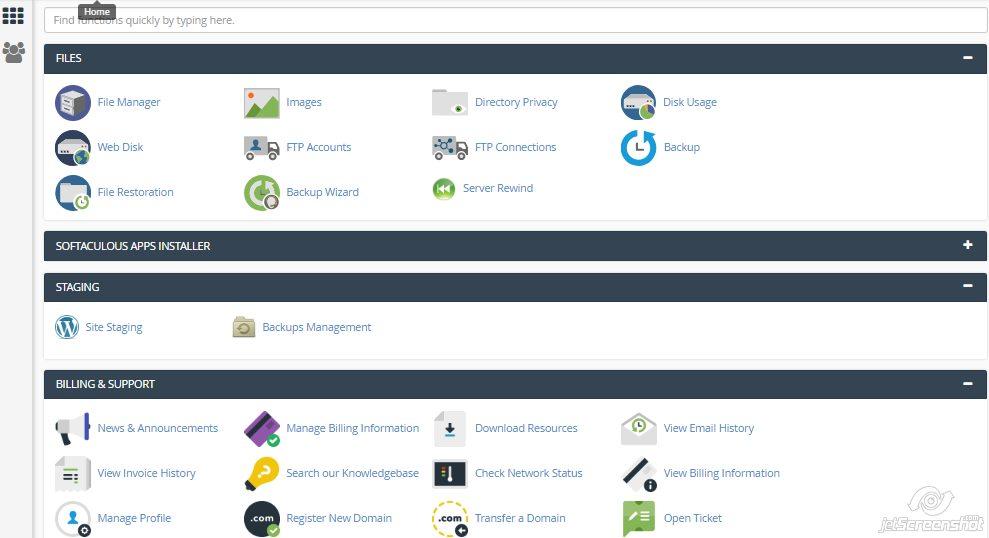
Step 7: I check hosting and server environment
Sometimes the problem is not WordPress itself.
I check:
- PHP version
- memory limits
- file permissions
- hosting error logs
Many issues happen after:
- PHP upgrades
- server migrations
- hosting changes
Step 8: I fix the root cause — not the symptom
I don’t apply quick hacks.
Once I find the actual cause, I:
- update or replace the problematic plugin
- fix compatibility issues
- roll back unsafe updates
- explain the issue clearly to the client
This avoids the same problem happening again.
Step 9: test everything calmly
After fixing, I test:
- frontend pages
- admin dashboard
- forms
- checkout (if applicable)
- performance basics
I don’t assume the fix worked — I verify.
Final thoughts
Most WordPress issues are not complex.
They only look complex when we rush.
A calm, step-by-step approach:
- saves time
- avoids mistakes
- builds trust
This process has helped me fix hundreds of WordPress issues across different types of websites.
